

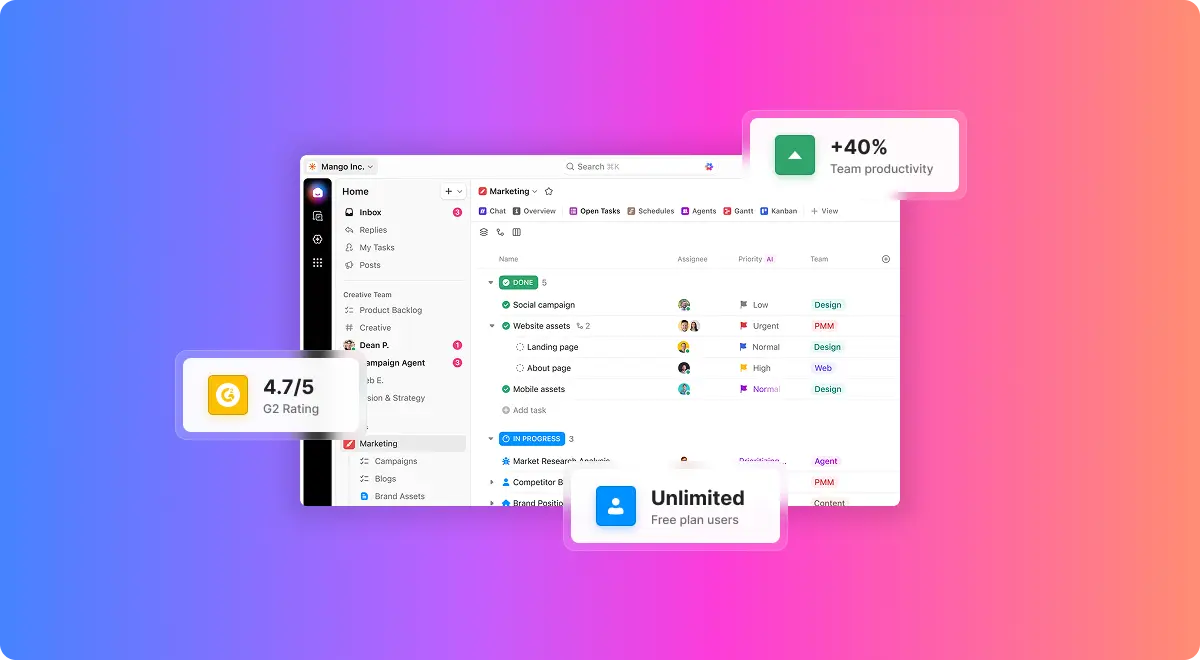
If you've been looking into project management tools recently, there's a good chance you've come across ClickUp. It keeps showing up in recommendations, comparison lists, and "best tools of 2026" articles. So the question is: is it actually as good as people say?
We did thorough research into every aspect of ClickUp for this review. We analyzed the features across every plan, compared pricing against the top alternatives, went through hundreds of real user reviews on G2, Capterra, and Reddit, and used the platform ourselves for managing tasks. This article covers everything we found, so you can decide whether ClickUp fits how you work.
What is ClickUp, exactly?
ClickUp is a work management platform that launched in 2017 out of San Diego. The idea behind it is to bring all your work tools into one place: tasks, documents, chat, whiteboards, time tracking, goals, and automations. Instead of jumping between 4 or 5 different apps every day, you open ClickUp and everything's there.
You can create tasks with subtasks, dependencies, and custom fields. You can write and collaborate on documents in real time. You can track time on projects without paying for a separate app. You can build dashboards that show your team's progress at a glance. And with ClickUp Brain (the AI assistant introduced in late 2023 and significantly improved since), you can summarize threads, draft content, and search across your entire workspace using natural language.
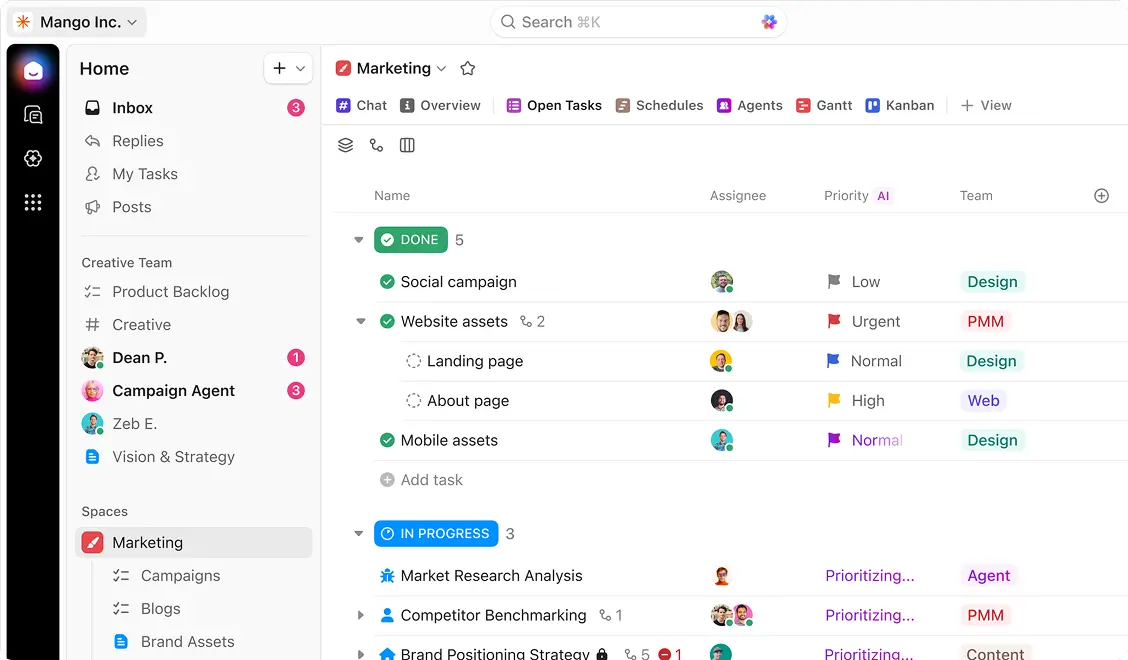
Over 8 million users are on the platform today, including teams at companies like Samsung, Booking.com, and IBM. ClickUp has grown from a startup into one of the most recognized project management platforms in the market.
Who is ClickUp built for?
ClickUp works best for people and teams who manage multiple projects with overlapping tasks. If you're running a creative agency with 10 clients, coordinating a product launch across departments, or managing operations across multiple teams, ClickUp's structure (Workspace, Space, Folder, List, Task) gives you a way to organize all of that cleanly.
Product teams, marketing departments, and operations managers tend to get the most value from it. These roles typically need custom views, workflow automations, and a central place to keep everything connected. If you're currently paying for a task manager AND a docs tool AND a chat app AND a time tracker separately, ClickUp covers all of those in one subscription.
For personal use, ClickUp's free plan gives you unlimited tasks, which is a generous starting point. If you want to organize personal goals, side projects, or anything that needs structured tracking, the free tier handles it well.
On the other hand, if you're a small team of 2 or 3 people who just need a simple task board, there are lighter tools that'll get you started faster. ClickUp's strength is its depth, and that depth comes with a setup investment that's more suited for teams who need that level of flexibility.
The features that actually matter
ClickUp has over 100 features. Nobody uses all of them, but the ones that matter can genuinely change how your team works. Here's what stands out.
Task management
This is ClickUp's core strength. You get tasks, subtasks, checklists, dependencies, and relationships between tasks. You can assign multiple people, set priorities, add due dates, and track everything with custom statuses. The task detail view shows descriptions, activity logs, comments, and time tracked all in one panel. For teams who need granular control over their projects, this is one of the deepest task systems available.
15+ views to see your work your way
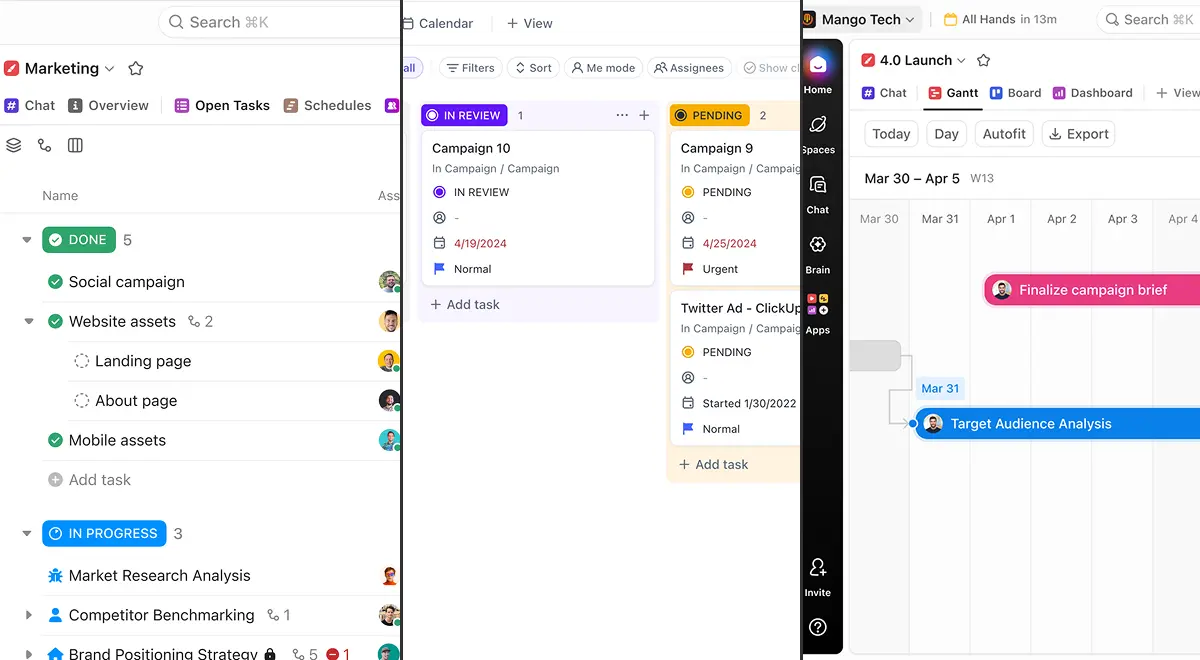
The same tasks and data can be viewed as a Kanban board, a flat list, a calendar, a Gantt chart, a timeline, a workload view, or a table. Your project manager can use the Gantt view, your developer can work from the List view, and your designer can stick to the Board. Everyone sees their work the way they prefer, without duplicating anything.
Docs and whiteboards
ClickUp includes built in docs for writing, collaborating, and storing team knowledge. They're solid for internal documentation, meeting notes, SOPs, and project briefs. The main advantage is that docs live right next to your tasks, so you don't lose context switching between apps. Whiteboards are useful for brainstorming and mapping out project flows.
ClickUp Brain (AI)
The AI assistant has improved significantly heading into 2026. You can ask Brain questions about your workspace ("What's the status of the Q1 campaign?"), generate task descriptions, summarize long comment threads, and create docs from prompts. It works across chat, tasks, and docs. Brain AI costs $9/user/month on top of your plan. Everything AI, which adds the AI notetaker, image generation, and advanced automations, is $28/user/month.
Time tracking
Built in natively on the Unlimited plan and above. You can start timers on tasks, add time entries manually, and see timesheets. Service businesses that bill by the hour will appreciate having time data attached directly to the task itself.
Automations
You can set up rules like "when status changes to Done, assign to the QA lead" or "when a task is created in this list, set priority to high." There are pre built templates for common automations, which makes setup easier. The Business plan gives you 5,000 automations per month ($100 value included), which is more than enough for most mid sized teams.
Want to see all these features in action? ClickUp's free plan lets you try unlimited tasks, docs, and 15+ views with no credit card required.
Try ClickUp Now, It's FREE!ClickUp pricing in 2026: what you'll actually pay
ClickUp has four main plans. The base pricing is competitive, but the AI add ons are where costs can climb.
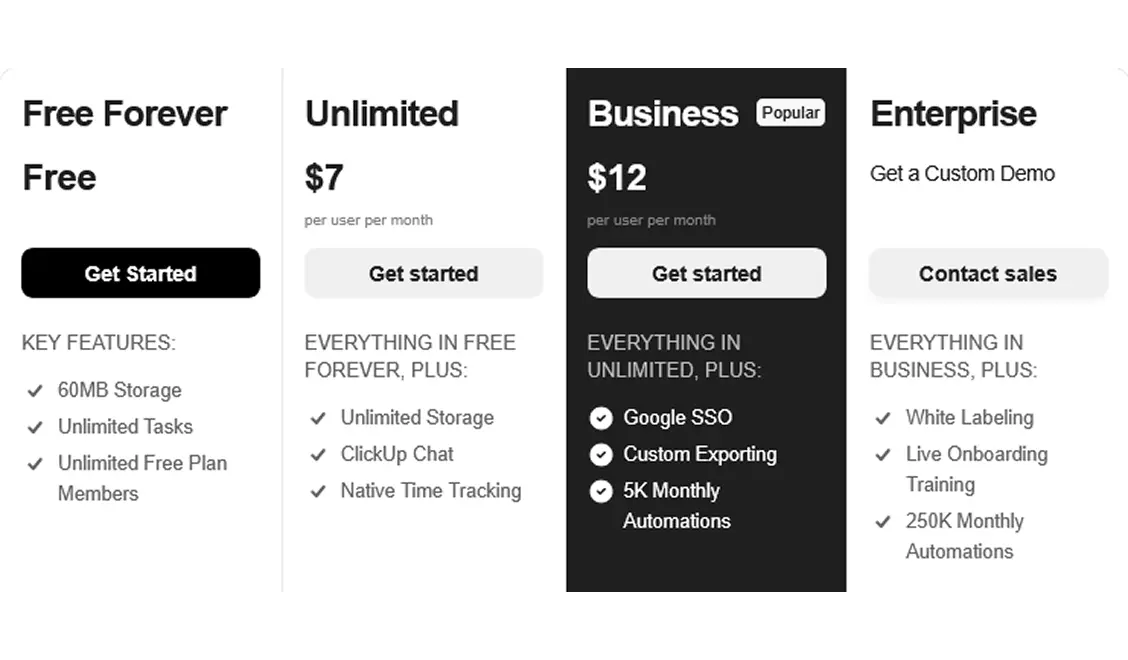
The Free Forever plan includes unlimited tasks, unlimited free plan members, collaborative docs, Kanban boards, sprint management, calendar view, basic custom field manager, in app video recording, two factor authentication, 24/7 support, and 1 form. Storage is limited to 60MB for the entire workspace.
The Unlimited plan at $7/user/month (billed yearly) adds everything in Free plus unlimited spaces, folders, and forms, unlimited Gantt charts, unlimited integrations (Slack, HubSpot, Google Drive, and more), unlimited storage, unlimited custom fields, unlimited chat messages, native time tracking, goals and portfolio management, resource management, guests with permission control, email in ClickUp, and 3 teams (user groups). For a team of 10, that's $840/year.
The Business plan at $12/user/month (billed yearly) adds everything in Unlimited plus Google SSO, unlimited dashboards with advanced cards, unlimited message history, unlimited activity views, unlimited timeline views, webhooks and automation integrations, 5,000 automations per month, mind mapping, private whiteboards, custom exporting, sprint points and reporting, portfolio workload management, SMS two factor authentication, and unlimited proofing. A 10 person team pays $1,440/year.
The Enterprise plan adds enterprise permissions and governance, unlimited custom roles, SAML SSO and SCIM provisioning, audit log, session management, enterprise API, 250,000 automations per month, custom branding, default personal views, MSA and HIPAA availability, data residency, live onboarding training, a customer success manager, and access to managed services. Pricing requires contacting sales.
One thing worth knowing: ClickUp bills at the Workspace level. You can't mix free and paid users in the same workspace. When you upgrade, everyone in that workspace upgrades. Plan your team structure with that in mind.
AI add ons are separate. Brain AI is $9/user/month and Everything AI is $28/user/month. There's also a pay as you go option with AI Super Credits at $10 for 10,000 credits. ClickUp offers a 100% money back guarantee on all plans.
"Even the free version is more versatile than the paid versions of many competitors. The value for money of the paid version is awesome."
— Antti Laitinen, G2 ReviewThe learning curve: what to expect in your first weeks
ClickUp has a learning curve, and it's worth talking about openly. It's not because the platform is poorly designed. It's because it offers so many features and options that the initial experience can feel like a lot to take in.
Based on what users consistently report across review platforms, it takes about a week to get comfortable with the basics and 2 to 3 weeks to feel truly confident. That's longer than simpler tools, and it's important to factor that in when choosing. If you enjoy building systems and customizing workflows, the setup process can actually be quite rewarding. If you need something working immediately with minimal configuration, keep that timeline in mind.
ClickUp has invested heavily in making onboarding smoother. There's ClickUp University with free courses, an interactive setup guide when you create your account, and templates for nearly every use case. Support is available 24/7 on all plans, including the free one.
The best approach? Start simple. One Space, one List, a handful of real tasks. Get comfortable with the basics first, then explore views, custom fields, and automations as you discover what your workflow actually needs.
What real users are saying about ClickUp
We went through hundreds of reviews across G2, Capterra, Trustpilot, and Reddit to understand the real user experience.
The most praised aspect is customizability. On G2, ClickUp holds a 4.7 out of 5 rating with over 10,000 reviews. Users appreciate being able to create custom workflows that match how their team actually operates. The free plan's generosity also comes up frequently, especially since it includes unlimited tasks and members with no minimum seat requirements.
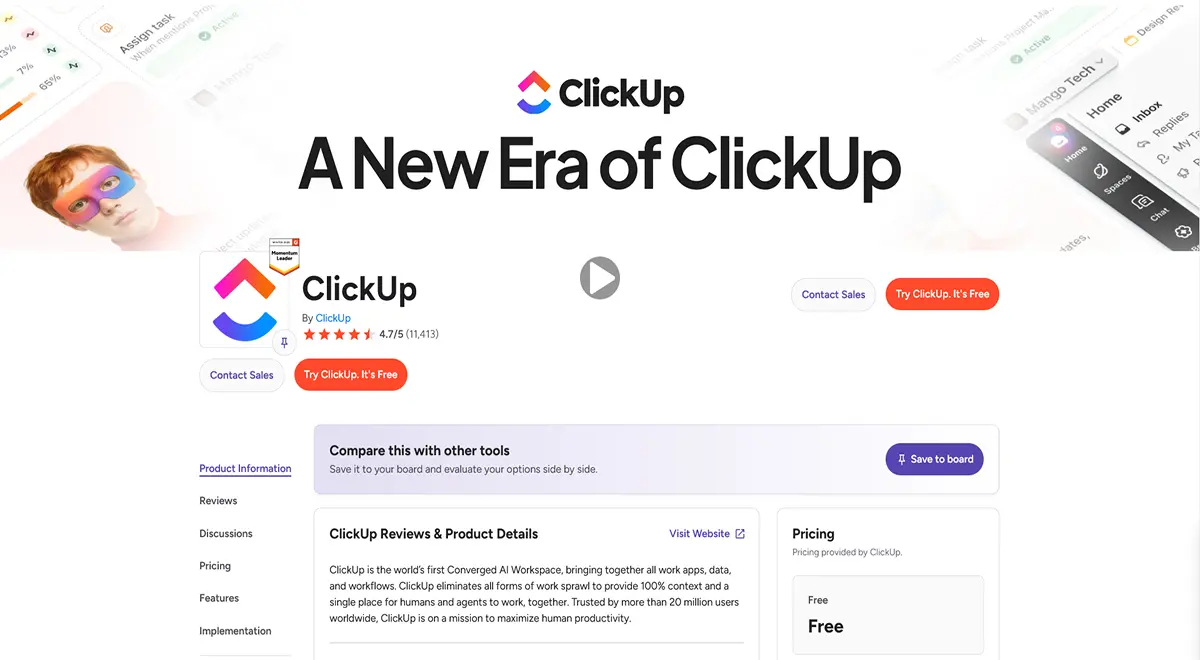
The most common concern is the learning curve. Several Capterra reviewers mention feeling overwhelmed during the first couple of weeks. Some users report occasional slowness in larger workspaces, and the mobile app, while noticeably improved in recent updates, doesn't fully match the desktop experience yet.
On Reddit's r/clickup community, the recurring theme is clear: teams who take the time to plan their workspace structure (status schemas, naming conventions, custom fields) have a much better experience than those who jump in without a plan.
Honest pros and cons breakdown
What we like
What could be better
Who should use ClickUp (and who shouldn't)
ClickUp is a strong fit if you manage multiple projects or clients at the same time, want to consolidate several tools into one workspace, have a team of 5 or more that benefits from workflow customization, enjoy building organized systems for your work, or need a platform that grows with your team.
You might prefer a different tool if you need something simple and ready to use in a few minutes, have a team of 1 to 3 people with straightforward task needs, primarily organize your work around a calendar, or prefer minimal configuration over deep customization.
"Coming over from Monday and it's the best decision I've made. I was frustrated with limits, so I tinker with ClickUp and now I have everything I need in one place."
— Joshua Centers, ClickUp ReviewHow ClickUp stacks up against the competition
There are several strong project management platforms available in 2026. Here's how ClickUp sits alongside some of the popular options.
ClickUp vs Monday.com: Both are capable platforms with different approaches. ClickUp offers more built in features and starts at $7/user, while Monday.com starts at $9/seat with a focus on visual project tracking and a streamlined setup experience. The right choice depends on whether your priority is depth and customization or visual simplicity and speed of adoption. We have a detailed Monday.com vs ClickUp comparison that covers every difference.
ClickUp vs Asana: Asana offers a polished experience focused on clarity and ease of adoption. ClickUp includes more built in tools (docs, whiteboards, time tracking) that Asana handles through integrations or separate products. Both are strong choices depending on whether you value breadth of features or a focused, clean interface.
ClickUp vs Notion: These serve different primary needs. Notion excels at knowledge management, documentation, and flexible databases. ClickUp excels at project execution, task tracking, and workflow management. Some teams use both for different purposes. ClickUp's docs have been steadily improving and getting closer to Notion's capabilities with each update.
ClickUp vs Trello: Trello focuses on Kanban boards and simple, visual task tracking. ClickUp is a full work management platform with significantly more capabilities. Trello is an excellent choice for teams who want a clean, visual way to manage tasks. ClickUp is a better fit when you need multiple views, automations, and deeper project management features.
How to get started without the overwhelm
If you're ready to give ClickUp a try, here's a practical approach that helps you avoid the setup overwhelm many new users experience.
Start by signing up for the free plan. You'll automatically get a 14 day trial of Business features, which lets you explore the premium capabilities before deciding if you need them.
Create just one Space to begin with. Name it after your main area of work ("Marketing," "Projects," "Client Work") and create one List inside it. Add 5 to 10 tasks that represent your actual work this week. Don't worry about custom fields, automations, or dashboards at this stage.
Use the default status workflow (To Do, In Progress, Done) until you understand what additional statuses you actually need. You can always expand it later.
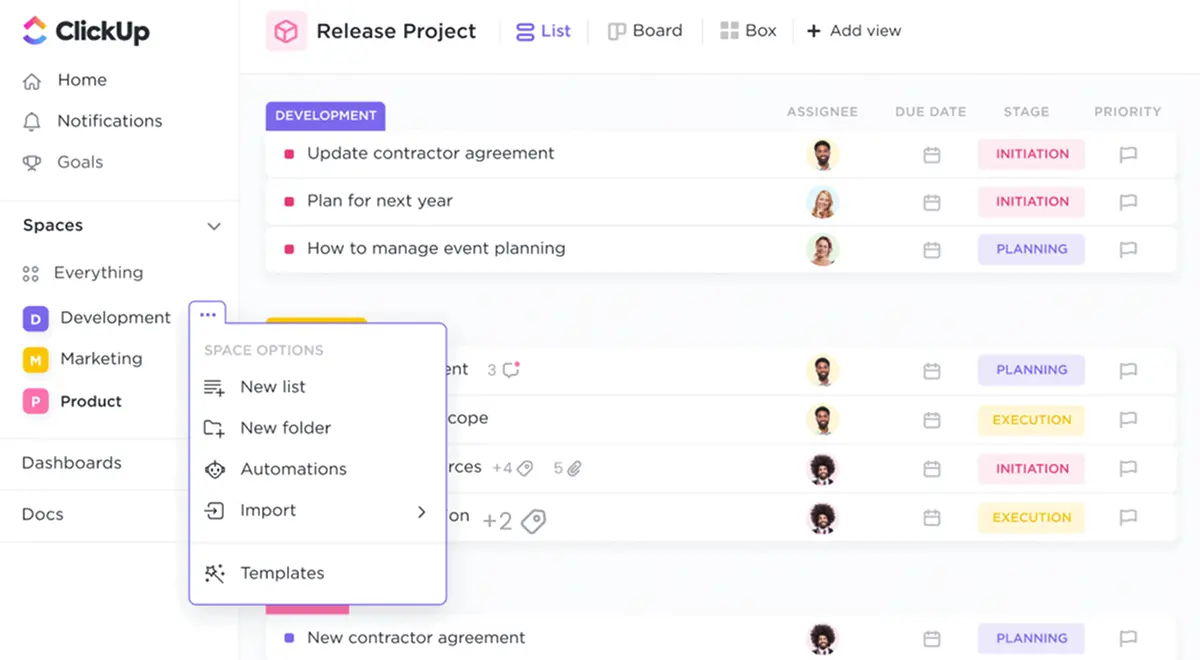
Once you've spent about a week working with real tasks, start exploring the different views. Try the Board view, Calendar view, and Gantt view. You'll quickly discover which one fits how you think about your work. From there, gradually introduce custom fields and automations as you notice patterns you want to streamline.
"Took some time to learn, but to learn how to make my process better. Productivity went up probably 250%."
— Jose Miguel Villouta, ClickUp ReviewFrequently asked questions
Yes, ClickUp offers a Free Forever plan with unlimited tasks and unlimited members. Storage is limited to 60MB for the whole workspace, and some features like custom fields and Gantt charts are capped at 60 uses. It's a good starting point for personal projects or for getting a feel for the platform before upgrading.
Paid plans start at $7/user/month for Unlimited (billed yearly) or $10/user/month if you pay monthly. The Business plan is $12/user/month yearly. Enterprise pricing requires contacting their sales team. AI features are separate: Brain AI is $9/user/month and Everything AI is $28/user/month. All plans come with a 100% money back guarantee.
ClickUp works well for small businesses that want an all in one workspace and don't mind spending some time on initial setup. It can consolidate multiple separate tools into one subscription, which adds up to real savings. Teams under 5 people with basic needs might find a simpler tool a quicker starting point, then move to ClickUp as they grow.
Absolutely. The free plan is solid for personal task management, goal tracking, and organizing projects. You get unlimited tasks, collaborative docs, and calendar views at no cost. People use it for everything from managing home renovations to tracking fitness goals to organizing side projects.
ClickUp is used for project management, task tracking, team collaboration, document creation, goal setting, time tracking, and workflow automation. Common use cases include marketing campaign management, software development sprints, client project tracking for agencies, and operations workflow management.
Both are strong platforms with different strengths. ClickUp offers more built in features and starts at $7/user versus Monday.com's $9/seat. Monday.com focuses on visual simplicity and faster onboarding. The best choice depends on whether you prioritize feature depth or ease of setup. We have a full ClickUp vs Monday.com comparison that goes into all the details.
Final verdict: is ClickUp worth it in 2026?
Yes, ClickUp is a genuinely solid platform. It packs an impressive amount of functionality into one workspace, and the pricing is among the most competitive in the project management space.
The platform's biggest strength is also its biggest challenge. It does a lot, which means there's a learning period. But teams who take the time to set things up properly end up with a system that handles tasks, docs, communication, time tracking, and reporting all in one place. That kind of consolidation saves both money and the daily friction of switching between apps.
At $7/user/month with a free tier that includes unlimited tasks and members, ClickUp offers more value per dollar than most alternatives. The AI features, the 15+ views, the automation engine, the built in docs, all of it adds up to a platform that can grow with your team from 5 people to 500.
If you've been thinking about trying it, the free plan is the easiest way to start. Sign up, create a workspace, add some real tasks, and see how it feels. You'll know within a week or two whether ClickUp is the right tool for how you work.
Ready to see if ClickUp fits how you work? The free plan includes unlimited tasks, 15+ views, and a 14 day Business trial. No credit card needed.
Try ClickUp Free